Step 1: Downloading and Installing Winbox (MikroTik Basic Configuration Guide)
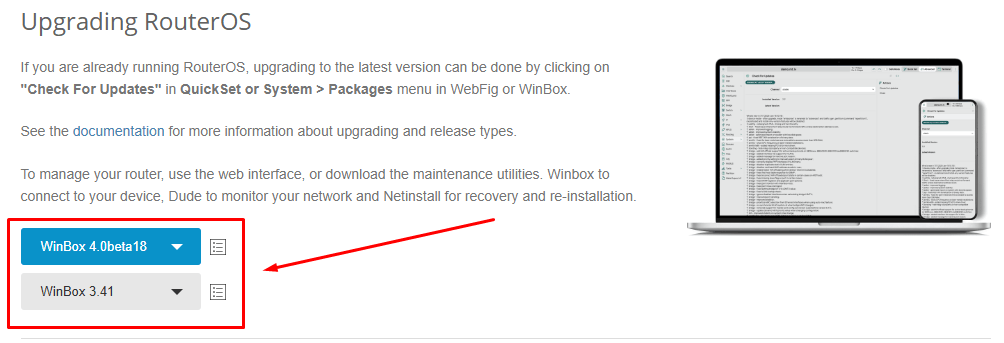
- Visit the official MikroTik website (https://mikrotik.com/download) and download the latest version of Winbox.
- The program does not require installation—simply run the downloaded
Winbox.exefile.
Step 2: Connecting to the Router
- Connect the device to your computer via cable.
- Launch Winbox and wait for it to automatically detect MikroTik devices on your network.
- From the list of detected devices, select your router by its MAC address (even if the IP address is not yet configured).
- Enter the login and password:
- For new devices, the password is provided in the router’s box.
- For older models, the default credentials are
admin(no password).
- Click the “Connect” button.
- This allows connection even if the router has no configured IP address or network settings.

Step 3: Changing the Administrator Password
- In the left menu, go to “System” → “Users”.
- Either add a new user or change the password for the default “admin” account by double-clicking it.
- In the “Password” tab, set a new strong password and click “OK”.
- Changing the default password is crucial for security, as default credentials are a primary target for attackers.
Step 4: Configuring Interfaces and Internet Connection
- In the left menu, select “Interfaces”.
- Identify the WAN interface (Internet connection). Typically, this is
ether1, but it may vary.
Option 1: Dynamic IP (DHCP Client)
- Go to “IP” → “DHCP Client”.
- Click “+” to add a new DHCP client.
- Select the WAN interface in the “Interface” field.
- Enable “Add Default Route” (creates a default route).
- Click “OK”.
- This method is used when your ISP assigns an IP automatically.
Option 2: Static IP
- Go to “IP” → “Addresses”.
- Click “+” and enter the static IP provided by your ISP (e.g.,
195.168.0.100/24). - Select the WAN interface and click “OK”.
- Configure the default route:
- Go to “IP” → “Routes”.
- Click “+”, set “Dst. Address” to
0.0.0.0/0(default route). - Enter the ISP’s gateway IP in “Gateway”.
- Click “OK”.
- Set up DNS servers:
- Go to “IP” → “DNS”.
- Enable “Allow Remote Requests” if needed.
- Enter your ISP’s DNS (or public DNS like
8.8.8.8,8.8.4.4). - Click “Apply” and “OK”.
Step 5: Creating a Bridge
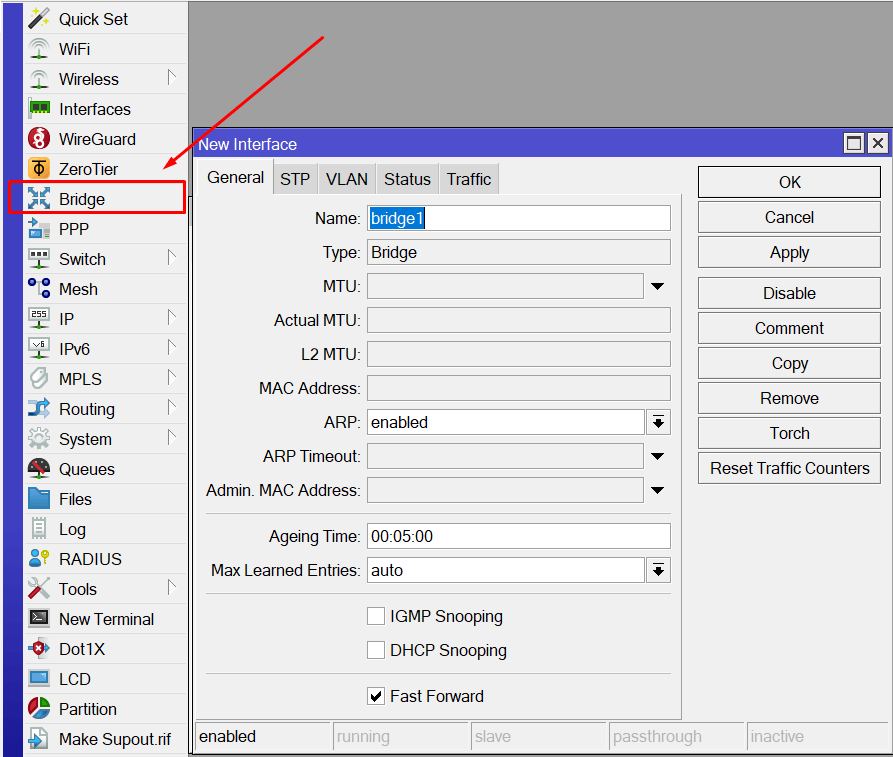
- Go to “Bridge” in the left menu.
- Click “+”, name the bridge (e.g.,
bridge1), and click “OK”. - Add ports to the bridge:
- Go to “Bridge” → “Ports”.
- Click “+”, select the interface (e.g.,
ether3), and assign it to the bridge. - Repeat for each interface you want to bridge.
[amazon_auto_links id=”8218″]
Step 6: Assigning an IP Address to the Bridge
- Go to “IP” → “Addresses”.
- Click “+”, enter an IP (e.g.,
192.168.88.1/24), and select the bridge interface. - Click “OK”.
Step 7: Setting Up a DHCP Server
- Go to “IP” → “DHCP Server”.
- Click “DHCP Setup” and follow the wizard:
- Select the LAN interface.
- Set the DHCP network (e.g.,
192.168.88.0/24). - Define the address pool (e.g.,
192.168.88.2-192.168.88.254). - Set the gateway (
192.168.88.1). - Enter DNS servers (e.g.,
8.8.8.8). - Configure lease time and click “OK”.
Step 8: Configuring NAT
- Go to “IP” → “Firewall” → “NAT”.
- Click “+”, set “Chain” to
srcnat. - Select the WAN interface in “Out. Interface”.
- Under “Action”, choose
masquerade. - Click “OK”.
Step 9: Basic Firewall Setup
- Go to “IP” → “Firewall” → “Filter Rules”.
- Allow established connections:
- Add a rule with “Chain” =
input, “Connection State” =established,related, “Action” =accept.
- Add a rule with “Chain” =
- Block invalid traffic from WAN:
- Add a rule with “Chain” =
input, “In. Interface” = WAN, “Connection State” =invalid, “Action” =drop.
- Add a rule with “Chain” =
- Repeat similar rules for the
forwardchain.
Step 10: Basic Wi-Fi Configuration
- Go to “Wireless”, select your Wi-Fi interface (
wlan1). - Under “Wireless”:
- Mode:
ap bridge - Band:
2GHzor5GHz - SSID: Set your network name
- Mode:
- Under “Security Profiles”:
- Create a new profile with “WPA2 PSK” and AES encryption.
- Set a strong Wi-Fi password.
- Ensure the interface is enabled (status “R”).
Step 11: Remote Access (Optional)
- Go to “IP” → “Services”.
- Configure “winbox” access:
- Change the port if needed.
- Restrict access via “Available From” (for security).
Conclusion
Your MikroTik router now has a basic configuration:
- Secure admin access
- Properly configured interfaces
- Internet connectivity
- DHCP for local devices
For advanced setups (e.g., port forwarding, VLANs, QoS), refer to additional guides.
Similar articles – https://itorakul.com.ua/en/category/mikrotik/