WireGuard (WireGuard VPN MikroTik) is a modern VPN protocol that became available in MikroTik starting with RouterOS v7. It combines simplicity, high speed, and modern cryptography. This makes it an excellent choice for connecting offices or remote users.
In this guide, we’ll set up a VPN tunnel between two MikroTik routers:
- Router A (main office, network 192.168.1.0/24)
- Router B (branch office, network 192.168.2.0/24)
For each step, both CLI commands and Winbox configuration will be shown.
Step 1. Creating the WireGuard VPN MikroTik Interface
🔹 CLI
/interface wireguard add name=wg1 listen-port=51820🔹 Winbox
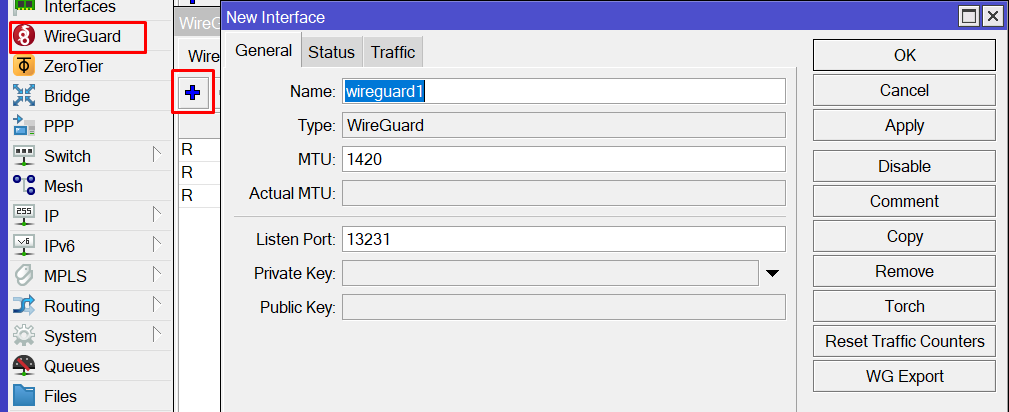
- Open Interfaces → WireGuard.
- Click + (Add) → select WireGuard.
- Specify:
- Name: wg1 (You can specify your own name)
- Listen Port: 51820 (You can specify your own port)
- Click OK.
Step 2. Viewing Keys
🔹 CLI
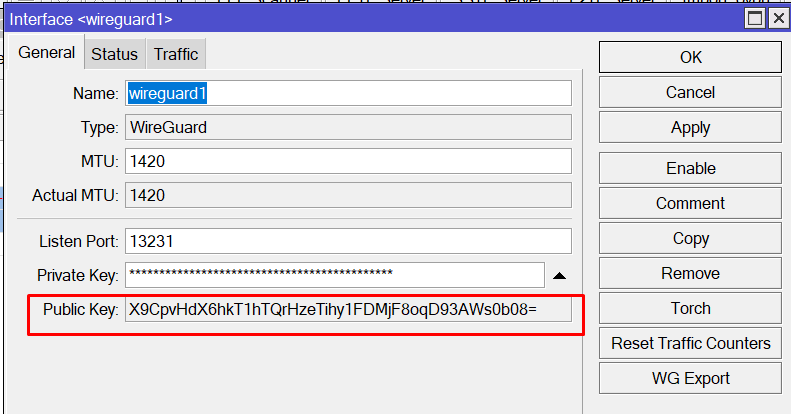
/interface wireguard printCopy the Public Key — it needs to be provided to the other router.
🔹 Winbox
- Open the Interfaces → WireGuard tab.
- Select
wg1. - Copy the key from the Public Key field.
Step 3. Adding Peer (Partner)
🔹 CLI (Router A)
/interface wireguard peers add interface=wg1 \
    public-key="PUBKEY_B" \
    allowed-address=10.10.10.2/32 \
    endpoint-address=IP_RouterB \
    endpoint-port=51820
🔹 CLI (Router B)
/interface wireguard peers add interface=wg1 \
    public-key="PUBKEY_A" \
    allowed-address=10.10.10.1/32 \
    endpoint-address=IP_RouterA \
    endpoint-port=51820
🔹 Winbox (on each router)
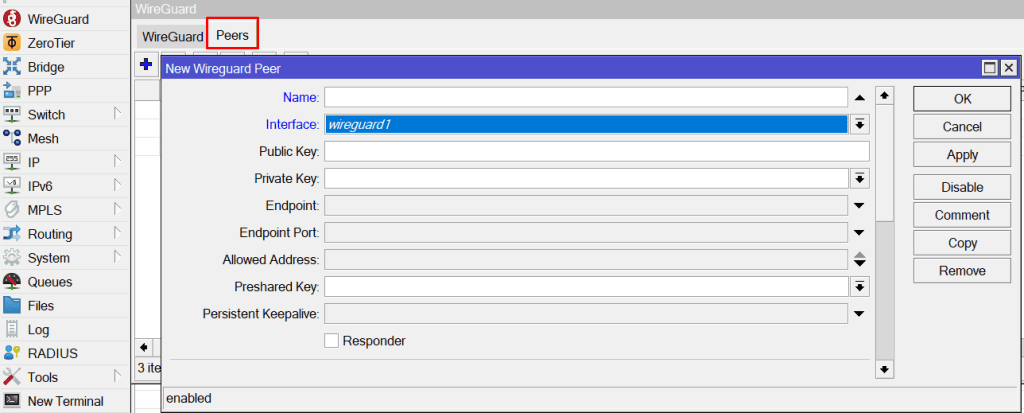
- Go to WireGuard → Peers → +.
- Fill in:
- Interface: wg1
- Public Key: public key of the other router
- Allowed Address: 10.10.10.2/32 (or 10.10.10.1/32 on the second)
- Endpoint Address: external IP of the other router
- Endpoint Port: 51820
- Click OK.
Step 4. Assigning Tunnel IP Addresses
🔹 CLI (Router A)
/ip address add address=10.10.10.1/30 interface=wg1🔹 CLI (Router B)
/ip address add address=10.10.10.2/30 interface=wg1🔹 Winbox
- Open IP → Addresses → +.
- On Router A:
10.10.10.1/30→ interfacewg1. - On Router B:
10.10.10.2/30→ interfacewg1.
Step 5. Configuring Routes
🔹 CLI (Router A)
/ip route add dst-address=192.168.2.0/24 gateway=10.10.10.2🔹 CLI (Router B)
/ip route add dst-address=192.168.1.0/24 gateway=10.10.10.1🔹 Winbox
- Open IP → Routes → +.
- On Router A:
- Dst. Address: 192.168.2.0/24
- Gateway: 10.10.10.2
- On Router B:
- Dst. Address: 192.168.1.0/24
- Gateway: 10.10.10.1
Step 6. Allowing Port in Firewall
🔹 CLI
/ip firewall filter add chain=input action=accept protocol=udp dst-port=51820🔹 Winbox
- Open IP → Firewall → Filter Rules → +.
- Specify:
- Chain: input
- Protocol: udp
- Dst. Port: 51820
- Action: accept
Testing the Configuration
- Perform ping from Router A to 10.10.10.2 and vice versa.
- Perform ping between hosts in networks 192.168.1.0/24 ↔ 192.168.2.0/24.
- In Winbox → WireGuard → Peers, check the Last Handshake field — it will show if there’s an active connection.
[amazon_auto_links id=”8218″]
Conclusion
WireGuard VPN MikroTik is a modern VPN protocol that can be configured literally in a few minutes. In this article, we built a tunnel between two offices using both CLI and Winbox, so anyone can choose their preferred working method.
WireGuard should be considered as the primary VPN protocol for RouterOS 7 thanks to its simplicity, security, and performance.
- Similar MikroTik articles – https://itorakul.com.ua/en/category/mikrotik/
- WireGuard VPN MikroTik documentation – https://help.mikrotik.com/docs/spaces/ROS/pages/69664792/WireGuard