
In this article, we’ll discuss one of the important functions of network equipment – channel redundancy on MikroTik routers, specifically about the MikroTik Netwatch tool. (Two providers on one router)
Let’s first understand what redundancy is and why it’s needed. Channel redundancy is the process of configuring devices to automatically switch to another channel (Provider) in case the main connection fails. This is an important function to ensure network continuity and provide internet access even when there are problems with the main provider.
Now let’s connect to our MikroTik router and set up channel redundancy using the Netwatch tool. For configuration, we’ll use the WinBox utility. First, we need to set up connections with two providers. The key here is that routes must be manually configured, and using provider DNS is also not advisable if you want your scheme to work. Regardless of what connection method your provider has given you, most settings need to be done manually.
Let’s assume we have configured connections to two providers (Standard configuration where DHCP Server/NAT/DNS is configured):
- ISP_1 route corresponds to the first provider, which is connected to eth1.
- ISP_2 route corresponds to the second provider connected to eth2.
Comments for routes are a mandatory condition for setting up channel redundancy on MikroTik !!!
After we’ve configured connections with providers, we go to the Tools tab, then to the Netwatch tab and create a rule that will regulate switching between providers.
- You can leave the name field empty, it doesn’t affect anything.
- In the host field, you need to enter the address we will ping (For example, 1.1.1.1 or 8.8.8.8). This address should be as stable as possible because the correct operation of the rules depends on it. (As an example, you can take the IP address 1.1.1.1)
- We choose the simple type of check, that is, a simple check. If you later want to fine-tune the check, you can choose the ICMP type.
- Then interval, this field is responsible for the frequency of checks of the above address. Set the check time depending on your needs; over years of using netwatch, I found an optimal time of 1 minute, but you can choose your own interval.
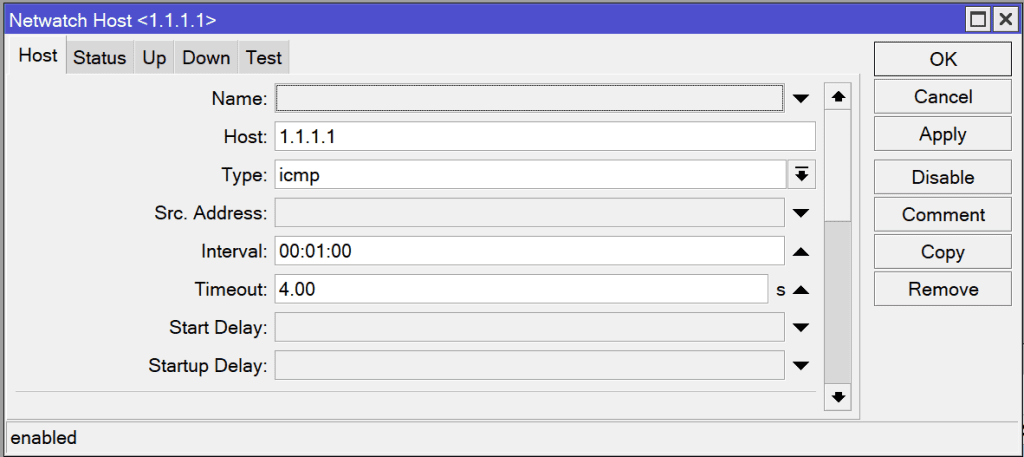
Next, you need to set the timeout; this field is responsible for the response time of the host you are monitoring. Depending on what is normal for you in terms of response time, set that time. I’ll set one for example. Generally, the ideal ping delay should be less than 40 milliseconds; normal or more or less tolerable is the interval from 40 to approximately 110 milliseconds. Click Apply. Done, the rule is created.
Now we need to add a route from the main provider to the address we will monitor.
To do this, go to IP —-> Route and create a rule /ip route add distance=1 dst-address=1.1.1.1/32 gateway=ether1. I always recommend writing comments; it makes it easier to understand what corresponds to what later. If you go to the Netwatch —-> Status tab, you can see how many checks have been performed.
The next step is to write scripts on the Up and Down tabs that will switch our channels. The Up tab will be responsible for the main provider, Down for the backup. Let’s write two scripts. The first line will enable the route with the comment ISP_1 and disable the route with the comment ISP_2. (That’s why we assigned comments to the routes at the very beginning) Click Apply. Now let’s do the same on the Down tab, but here everything will be mirrored: we disable the ISP_1 route and enable the ISP_2 route.
Up tab:
- /ip route enable [find comment=”ISP_1″]
- /ip route disable [find comment=”ISP_2″]
Down tab:
- /ip route disable [find comment=”ISP_1″]
- /ip route enable [find comment=”ISP_2″]
So in case the router cannot “reach” the IP address we are monitoring, or the response interval is exceeded, in this case, the script will switch to the backup provider and will work on it until there is a stable connection with the IP address we are monitoring. After which it will switch back to the main provider.
It might seem like that’s it, but there’s another nuance: in this form, after switching from the main to the backup channel and vice versa, there will likely be a prolonged hanging of connections that were already established, which in turn will lead to unstable internet network operation. To avoid this, we need to slightly modify our scripts. Let’s add scripts that will reset all TCP and UDP connections during channel switching. This way, we’ll avoid hanging inactive connections. (You can choose a script for your needs. You don’t need to use all 3!!!)
- :foreach i in=[/ip firewall connection find protocol~”udp”] do={ /ip firewall connection remove $i } – Resets udp connections one by one.
- :foreach i in=[/ip firewall connection find protocol~”tcp”] do={ /ip firewall connection remove $i } – Resets tcp connections one by one.
- /ip firewall connection remove [find] – Resets all connections simultaneously.
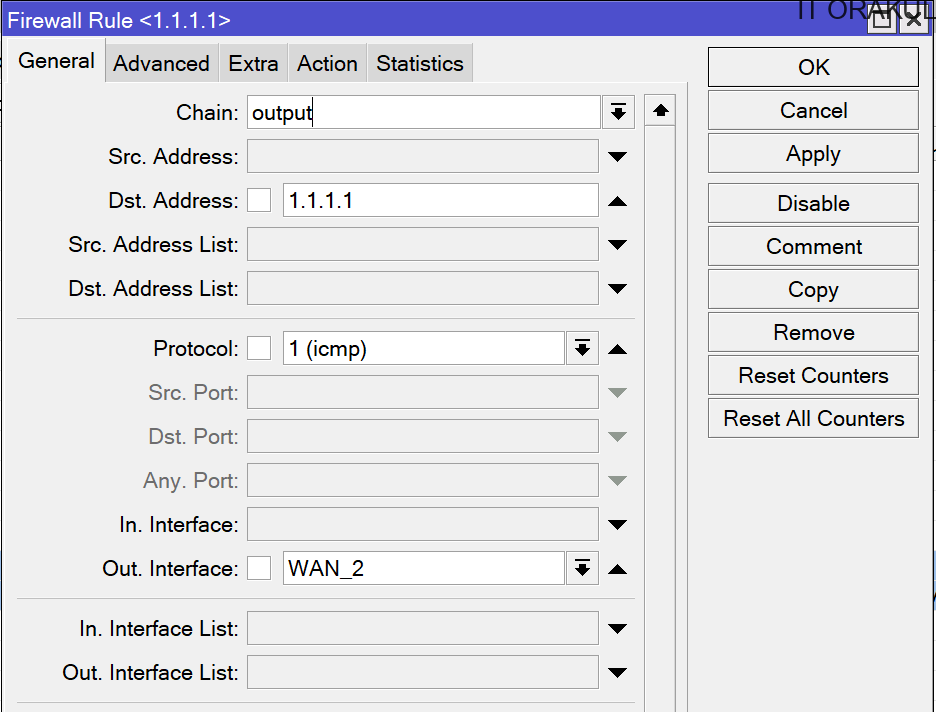
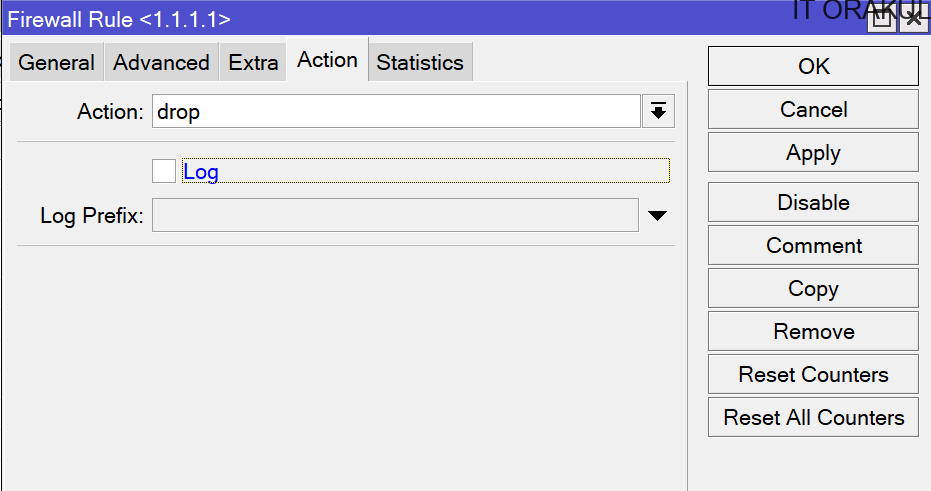
And the last thing we need to do to complete the redundancy setup on Mikrotik is to add one rule in the firewall that prohibits pinging the address we are monitoring from the backup provider. (/ip firewall filter add action=drop chain=output dst-address=1.1.1.1 out-interface=WAN_2) There are certain discussions about whether this rule is needed or not. I personally always add it, just in case. It doesn’t ask to be fed and definitely won’t make things worse.
In case your provider periodically changes the default gateway, you can go to the DHCP client–>Advanced tab and in the Script field write the following script /ip route set gateway=$”gateway address” numbers=[find comment=ISP_1] Where ISP_1 is the comment of your route where the default gateway changes periodically. In this case, the script will automatically change the default gateway in the route, and everything will work correctly.
So, let’s summarize. Channel redundancy on MikroTik Netwatch devices is an important function for ensuring network reliability. Despite some difficulties in configuration, it allows for continuous internet access even in unpredictable situations.
If you have questions or comments about MikroTik Netwatch, feel free to leave them in the comments below.
Similar articles – https://itorakul.com.ua/en/mikrotik/
Additional Information on Mikrotik – https://help.mikrotik.com/docs/spaces/ROS/pages/8323208/Netwatch