
So, what is OWASP ZAP? It is a tool, for finding vulnerabilities in web applications. It is open-source, meaning it is free, and it is cross-platform, working on Windows, Linux, or macOS.
Before we start delving into the tool in more detail, I want to emphasize that this article is educational, and it is not intended to teach you illegal activities in the cyberspace, as they are illegal and punishable by law.
Now let’s look at how to download and install OWASP ZAP.
- Go to the website and download the program – https://www.zaproxy.org/ As you can see, there are multiple download options depending on the Operating System you are using. We choose Windows 64, indicating that the program is for a 64-bit Windows Operating System.
- Also, to use ZAP, you need to download and install Java version 8, the link will be provided in the description. Download and install Java – https://www.oracle.com/java/technologies/downloads/
- After installing Java, install ZAP.
After completing the installation, launch the program and proceed to learning. At the beginning of the launch, a window opens, asking whether we want to save this session in case we want to work with it later.
Here you can choose:
- Yes, I want to save this session with a name based on the current timestamp (This means that the process you started will be automatically saved in the local OWASP database, and you can reopen it later for further work. This session will be saved with the default name, as the program will assign it.)
- Yes, I want to save this session, but I want to specify a name and location (Essentially) similar to the first option, but in this case, you can choose the location and name for saving the session.
- No, I don’t want to save this session at the moment (In this case, the program loads from scratch, and the session will not be saved automatically. However, if needed, you can load saved sessions separately through the File-Open Session menu, select the desired session, and press Open.)
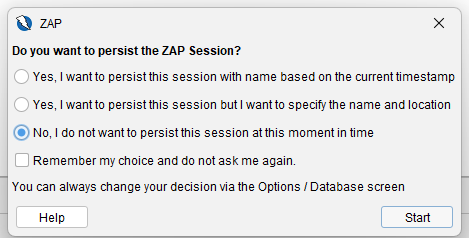
You can check the box next to remember my choice and do not ask me again.
Initially, we need to update all available plugins, which the program usually does automatically. But if not, you need to do it manually… OWASP ZAP supports the installation of third-party plugins, allowing you to significantly extend the program’s functionality. To go to the Plugins section, click on the icon under the name Manage (depicting 3 colored squares). If you click on a plugin, its name, status, version, and description will be displayed below. Links to the plugin’s documentation and its source code on GitHub are also provided. Plugins are developed by the OWASP team and enthusiasts. All plugins have open-source code and are completely free to use.
The ZAP tool has Scan Rules. Scan policies determine which rules are executed and how they are executed. To manage scan policies, open the Analysis dialog – Scan Policy Manager, where you can add or modify default settings to suit your needs. When changing rules, keep in mind that the more powerful scanning parameters you set, the longer the scanning process will take!!!
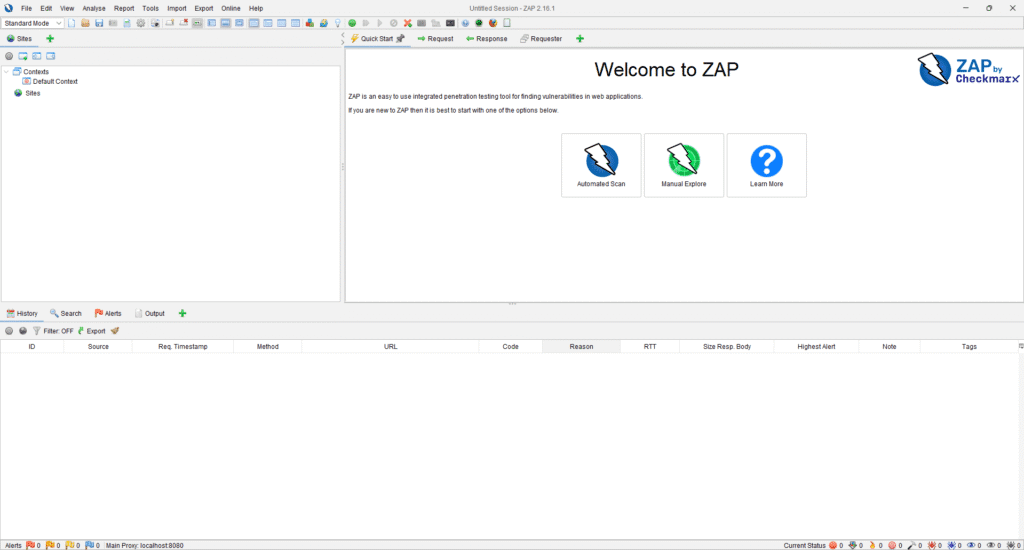
Now, let’s move on to an overview of the program’s interface. The program consists of six main elements:
- Main menu items
- Toolbar menu containing buttons for quick access to frequently used program functions
- Left-side window displaying URL addresses and the structure of the scanned site
- Right-side window, the working area of the tool, where you can see all sent requests and responses
- Information window, displaying tabs for History, Search, Alerts, and Output
- Bottom footer displaying statistics on found alerts and the status of main automatic tools.
Before we proceed to scanning, let’s discuss the scanning modes in which the program can operate.
- Standard Mode – regular scanning without limitations;
- Safe Mode – safe scanning that allows only actions that cannot harm the system. In this mode, attacks on the target site are not used, only scanning;
- Protected Mode – protected scanning that simulates potentially dangerous vulnerabilities. It is recommended to use protected mode to ensure that you only attack the sites you want. In this mode, the following features are not available:
- Active scanning
- Fuzzing
- Forced browsing
- Break (intercept)
- Request resend
- ATTACK Mode – an aggressive attack mode that allows not only scanning but also performing attacks on the potential site or application.

OwaspZap can work both in automatic and manual scanning modes. As websites vary in authentication and protection methods, it is recommended to initially scan the site in manual mode and then switch to automatic mode if necessary.
To work in manual scanning mode, click on the manual scanning tab, then choose the browser from the drop-down list in which you want to work and press the launch browser button. In the browser, open the site you want to scan, and you can see that information about the visited URLs and messages about your actions appear in the History panel, indicating that everything is configured correctly. In this mode, OWASP Zap works between your browser and the site you want to scan, providing information only about the URLs you visited.
Now, let’s move on to automatic scanning. To do this, click on the automatic scanning icon, enter the target site URL in the Target Attack field. For automatic scanning, you can use either the regular spider or the Ajax spider. In this example, I am using the regular spider. Then click Attack, and you can see that the testing process has started. Our spider identifies all hyperlinks on the page and adds their URLs to the list for visiting. On the Alerts tab, detected Possible vulnerabilities are shown, labeled as possible because the tool cannot guarantee 100% vulnerability; it needs manual confirmation. This tool only indicates points where, according to its check, there is a high probability of a certain vulnerability. Each vulnerability group is assigned a risk level, marked by a color code.
[amazon_auto_links id=”8218″]
In OWASP ZAP, there are 5 categories:
- High – the highest (critical) vulnerability level. This includes SQL injections, path traversal attacks, LDAP injections, Spring4Shell, and others. Marked with a red flag.
- Medium – medium criticality level of found vulnerabilities. This includes Directory Browsing, HTTPOnly, XSLT injections, and others. Marked with an orange flag.
- Low – low level of found vulnerabilities. This includes information related to debugging, disclosure of private IP addresses (Private IP Disclosure), and others. Marked with a yellow flag.
- Informational – an informational level that informs about components used on the website, as well as the server. This includes versions of the web server, databases, libraries, frameworks, as well as versions of programming languages and operating systems. Usually, vulnerabilities in this category cannot directly harm the system but increase the risk of collecting information about the site and its components. Marked with a blue flag.
- False Positive – false positives. In individual cases, ZAP may find a vulnerability that is not a vulnerability. If there is doubt, the program marks such a vulnerability with a green flag. However, the user must personally verify whether the found vulnerability is genuine.
You can also click on any alert to view detailed information about it, including the URL where the vulnerability was found, detailed information about it, and a possible fix.
In general, this covers the basic functionality. For more detailed and comprehensive information, you can refer to the link – https://www.zaproxy.org/docs/desktop