
Wireshark is a powerful and free open-source network protocol analyzer that allows for detailed examination of network traffic in real-time. It provides users with the ability to intercept and interactively view the contents of network packets passing through a computer system. Developed by Gerald Combs in 1998 (initially under the name Ethereal), today the tool is one of the most popular and powerful tools in the arsenal of cybersecurity specialists, network administrators, and ethical hackers.
Downloading and Installing Wireshark

Where to Download
The latest version of Wireshark can be downloaded from the official website: https://www.wireshark.org/download.html
Installation on Different Operating Systems
Windows
- Download the Windows installer (.exe)
- Run the installer and follow the instructions
- During installation, select components, including WinPcap or Npcap for packet capture
- After installation is complete, launch the program
macOS
- Download the .dmg file for macOS
- Open the downloaded file and drag the Wireshark icon to the Applications folder
- During the first launch, you may need permission to install components for packet capture
Linux (Ubuntu/Debian)
sudo apt update
sudo apt install wireshark
During installation, choose “Yes” to allow non-logged users to capture packets, or later add the user to the wireshark group:
sudo usermod -a -G wireshark $USERLinux (Fedora/Red Hat)
sudo dnf install wiresharkFreeBSD
pkg install wiresharkUseful Wireshark Filters
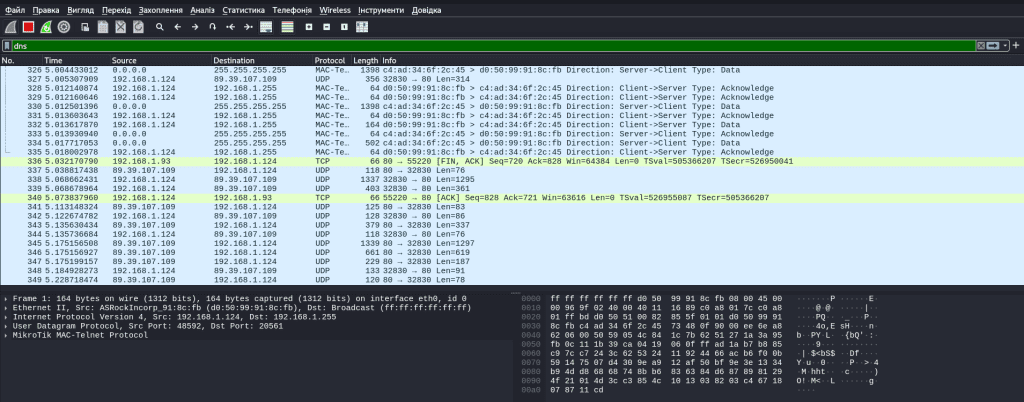
Filters are one of the most powerful tools that allow you to select only the necessary packets from the stream.
Basic Protocol Filters
http— show only HTTP trafficdns— filter DNS traffictcp— show only TCP packetsudp— show only UDP packetsicmp— show ICMP traffic (pings, etc.)arp— show ARP requests and responsessslortls— show TLS/SSL traffic
Filters by IP Addresses and Ports
ip.addr == 192.168.1.1— show traffic from/to a specific IP addressip.src == 192.168.1.1— traffic from a specific sourceip.dst == 192.168.1.1— traffic to a specific destinationtcp.port == 80— traffic through TCP port 80tcp.port == 80 || tcp.port == 443— HTTP or HTTPS traffic
Combined Filters
http && ip.addr==192.168.1.1— HTTP traffic from/to the specified IP address!(arp or icmp or dns)— exclude common service traffictcp.flags.syn == 1 && tcp.flags.ack == 0— show TCP SYN packets (connection initiation)
Specific Filters for Security Analysis
http.request.method == "POST"— show only HTTP POST requestshttp.authbasic— show basic HTTP authenticationsmb || nbns || dcerpc || nbss || dns— detect Windows activitytcp.analysis.retransmission— detect retransmissions (possible network problems)dns.qry.name contains "example"— search for DNS queries for domains containing specific text
Key Features of Wireshark
Wireshark stands out among other protocol analyzers with the following features:
- Deep packet inspection — allows analysis of hundreds of protocols, constantly updating their database
- Real-time capture and offline analysis — ability to both intercept live traffic and analyze saved logs
- Multi-platform — works on Windows, Linux, macOS, BSD, and other operating systems
- Powerful filtering system — for easy selection of necessary packets from large volumes of data
- Flow visualization — makes it easy to track TCP sessions and data flows
- VoIP decoding — ability to analyze voice traffic
- Export to various formats — XML, CSV, plain text, and other formats for further analysis
Why Use Wireshark?
For cybersecurity professionals and ethical hackers, this tool is an indispensable instrument for several reasons:
Network Security Analysis
- Detecting malicious traffic and suspicious activity
- Identifying network intrusion attempts
- Determining anomalies in network behavior
- Analyzing protection bypass methods and security testing
Network Troubleshooting
- Identifying causes of slow connections
- Diagnosing connection problems
- Analyzing configuration errors in network settings
- Monitoring network performance
Auditing and Compliance
- Verifying compliance with company security policies
- Documenting network activity
- Collecting data for forensic analysis
Examples of Using Wireshark in Ethical Hacking
Example 1: Analysis of Unsecured Protocols
One of the simplest and most common ways to use Wireshark is to detect unsecured protocols such as HTTP, Telnet, or FTP, which transmit data in plaintext.
Process:
- Launch the program and select a network interface for monitoring
- Set a filter to capture a specific type of traffic, for example:
http or ftp or telnet - Begin packet capture
- Analyze the intercepted data for unencrypted credentials
Result: If unsecured traffic is detected, you can see passwords, session keys, and other confidential information transmitted in plain text. This demonstrates the need to switch to secure protocols such as HTTPS or SSH.
Example 2: Detection of ARP Spoofing
ARP spoofing is an attack where an attacker associates their MAC address with the IP address of a legitimate device on the network, intercepting traffic.
Process:
- Start packet capture in Wireshark
- Apply the filter:
arp - Look for duplicate ARP responses or discrepancies between IP and MAC addresses
Result: If you detect multiple different MAC addresses associated with a single IP address or an excessive number of ARP requests/responses, this may indicate an active ARP attack on the network.
Example 3: Analysis of DNS Tunneling
DNS tunneling is a method that allows data to be transmitted through DNS requests, often used to bypass network restrictions.
Process:
- Set a filter for DNS traffic:
dns - Analyze the length and frequency of DNS requests
- Look for abnormally long domain names or suspicious patterns in requests
- Check encoding in domain names that may hide data
Result: Unusually long or frequent DNS requests, especially to non-standard domains, may indicate attempts to tunnel data through DNS.
Example 4: Analysis of SSL/TLS Certificates
Process:
- Set a filter to capture SSL/TLS traffic:
ssl or tls - Analyze certificates for authenticity and validity period
- Check supported ciphers and protocol versions
Result: You can detect potentially dangerous configurations, such as the use of outdated protocol versions (e.g., SSLv3), weak ciphers, or self-signed certificates, which may indicate vulnerabilities or attempts at man-in-the-middle (MitM) attacks.
Example 5: Detection of DoS Attacks
Process:
- Start packet capture
- Look for an abnormally high number of SYN packets (potential SYN flood attack):
tcp.flags.syn == 1 and tcp.flags.ack == 0 - Analyze the distribution of traffic sources for many requests from one or a limited number of addresses
Result: A high concentration of similar requests, especially TCP SYN without subsequent connection establishment, may indicate a DoS attack.
Ethical Aspects of Using Wireshark
Although Wireshark is a powerful tool for analyzing network traffic, using it without proper permission may violate privacy and electronic surveillance laws in many countries. Therefore, it is important to follow these recommendations:
- Obtain permission — before analyzing a network, make sure you have the appropriate authorization or explicit permission from the network owner
- Comply with legislation — familiarize yourself with local laws regarding data interception and network monitoring
- Protect sensitive data — if personal or confidential data is discovered during analysis, ensure its proper protection
- Document actions — keep a detailed log of your actions to ensure transparency
How to Get Started with Wireshark
- Download and install — get the latest version from the official Wireshark website
- Configure capture — select the appropriate network interface for monitoring
- Learn the basics of filtering — master the syntax of display and capture filters
- Practice in a controlled environment — start by analyzing your own network or specially configured laboratory environments
Useful Wireshark Filters
http.request.method == "POST"— show only HTTP POST requestsip.addr == 192.168.1.1— show traffic from/to a specific IP addresstcp.port == 80 || tcp.port == 443— filter by HTTP and HTTPS ports!(arp or icmp or dns)— exclude common service traffichttp.authbasic— show basic HTTP authenticationsmb || nbns || dcerpc || nbss || dns— detect Windows activity
Conclusion
Wireshark is an indispensable tool in the arsenal of cybersecurity professionals and ethical hackers, allowing for deep analysis of network activity, detection of vulnerabilities, and enhancement of information systems security. Understanding the principles of its operation and the correct application of network traffic analysis skills helps to effectively detect and prevent potential threats.
At the same time, it is always important to remember the ethical and legal aspects of using such powerful tools and to apply them exclusively with proper permission and in accordance with legislation.
- Similar articles – https://itorakul.com.ua/en/category/ethical-hacking/