
Nessus is a program for automatic detection of known vulnerabilities in information system security. It is one of many vulnerability scanners used during vulnerability assessments and penetration testing, including malicious attacks.
The program can detect various types of vulnerabilities, such as:
- Presence of vulnerable versions of services or domains
- Configuration errors (for example, lack of required authorization on SMTP server)
- Presence of default passwords, empty, or weak passwords, and similar issues
Installation Process
To start using the program, you need to download it from the official website – https://www.tenable.com/products/nessus/nessus-essentials and provide your contact information in a special form. You’ll need to specify your first name, last name, and email address where you’ll receive the activation key.
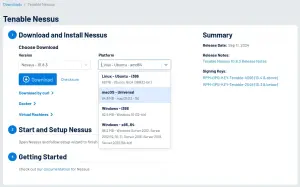 After receiving the email, download the program installation file from https://www.tenable.com/downloads/nessus. As you can see from the dropdown list, the program supports various operating systems. Choose the OS where you’ll install the program. Download and run the installation file, following the standard installation procedure, during which you can choose where to install the program.
After installation, you’ll be redirected to the WEB interface for further setup and registration. Wait for the initialization to complete, which may take some time.
Setup and Registration
The next step will be registration, which can be done offline if you don’t have an internet connection for some reason. In standard cases, click “continue.”
Next, choose the program version you’ll be registering – select “Essential” for the free version. If you have a different version, select your variant. Click continue, and you can skip the next step as we’ve already completed it. Click Skip.
Enter the registration key that was sent to your email. Copy and paste it into the window. Click continue, then continue again. Next, create an account by entering login and password, click Submit. After this, plugin downloading begins, which can take quite a while.
Interface Overview
After opening the web interface, you’ll need to wait some time for the program to complete plugin setup. The Nessus interface mainly consists of two main pages: the scanning page and the settings page. These pages allow you to manage scan configurations and customize the scanner according to how you want it to run in your system.
Settings Tab
The settings page contains configuration information, allowing you to define settings for your Proxy and SMTP server for additional functionality and integration in your network.
Scans Tab
This page allows you to create and manage new scans. Let’s go through the scanning plugins available to us:
- Host Discovery: Scans the network to identify active hosts and open ports
- Basic Network Scan: Scans network devices to detect basic vulnerabilities
- Advanced Dynamic Scan: Unlike the previous one, has more flexible scanning settings
- Malware Scan: Scans the system for malware and viruses in Windows or Linux systems
- Mobile Device Scanning: Checks mobile device and application security
- Web Application Testing: Analyzes web applications for vulnerabilities
- Credential Audit: This check requires host authentication and verifies credentials
- Intel AMT Bypass Check Plugin: Performs remote and local scans for CVE-2017-5689 vulnerability
- Spectre and Meltdown Plugin: Scans for remote or local checks for 3 CVE vulnerabilities
- WannaCry: This scanner checks for WannaCry ransomware vulnerabilities
- Ripple20: Remote scanner that can find hosts containing Ripple20 vulnerability
- ZeroLogon: Remote scanning detects Microsoft vulnerabilities related to privilege escalation (CVE-2020-1472)
- Solarigate: Scanner that detects Solarwinds and Solarigate vulnerabilities
- ProxyLogon: Scanner that performs remote and local scanning of Microsoft Exchange vulnerabilities
- PrintNightmare: Windows print spooler check that detects CVE-2021-34527
- Active Directory Starter Scan: Checks Active Directory for misconfigurations
- Log4Shell: Detects local CVE-2021-44228 vulnerability in Apache
- Log4Shell Remote: Detects the same vulnerability but through remote scanning
- Log4Shell Scanner: Detects not just one specific vulnerability, but an entire ecosystem of vulnerabilities
- CISA Alert: Conducts remote and local checks for AA22-011A and AA22-047A vulnerabilities
- ContiLeaks: Performs local and remote scanning for ContiLeaks vulnerabilities
- Ransomware Ecosystem: Performs local and remote scanning for various ransomware vulnerabilities
The next scan detects vulnerabilities listed in the Tenable company’s 2022 report. If you’re interested, you can search online for more detailed information about this scanner.
Practical Usage
Let’s look at how this program works in practice by running a Basic Network Scan:
- In the name field, write the name of your scan
- You can describe what exactly you’re scanning and why
- Specify what you’ll be scanning (for example, you can scan your local network – 192.168.0.0/24)
Click SAVE and launch the scan in the next tab.
Wait while the program scans your local system, and you can assess the network’s security status. You can read information about all vulnerabilities found, solutions offered, and additional information by following the suggested links. If you don’t understand English, you can translate the page to your preferred language. After completing the scan, you can generate a scan report.