Configuring Email Notifications in Zabbix (zabbix email)
In this article, we will explore step-by-step configuration of email notifications to send event alerts to Zabbix server administrators. If you want to receive notifications about events on your server via email at any time, this guide is for you. While Zabbix supports various notification methods, today we’ll focus specifically on email notifications.
Step 1: Activate Trigger Actions
To configure event notifications, first navigate to Configuration > Actions, and select the Trigger Action tab. Here, you need to activate the “Report problem to Zabbix administrator” function.
Step 2: Configure Media Types
Next, go to the Media types tab. Click on Create notification method or select E-mail from the list of existing options. We’ll create a new template.
On the template settings page, you’ll find all the necessary parameters for configuring the SMTP server, selecting the port, email address fields, and other options. Note that all required fields are marked with a red asterisk.
Step 3: Fill in Email Configuration Fields
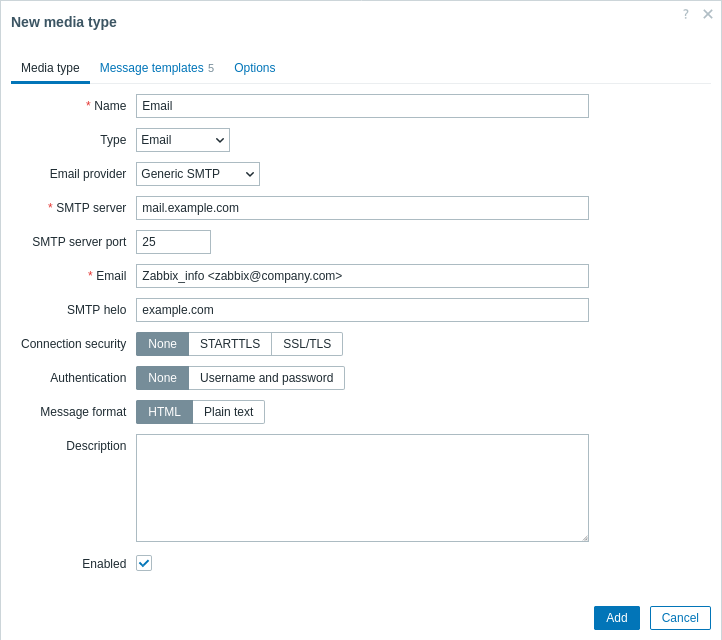
Let’s complete these fields:
- Name: Enter a name for your notification template (can be anything descriptive)
- Type: Select “Email” from the dropdown list
- Email provider: You can choose a template (like Gmail) or fill everything manually. We’ll demonstrate manual configuration.
SMTP Configuration
- SMTP server: Specify the SMTP server for processing outgoing messages (e.g., smtp.gmail.com)
- SMTP server port: Specify the SMTP server port number (e.g., 465)
- SMTP email: The address that will appear in the “From” field of sent messages
- SMTP helo: Specify the correct SMTP helo value, usually your domain name
- Connection security: Choose security level: None, STARTTLS, or SSL/TLS
- SSL verify peer: Check to verify the SMTP server’s SSL certificate
- SSL verify host: Check to verify that the SMTP server certificate’s “Common Name” or “Subject Alternate Name” field matches
- Authentication: Choose authentication level: None, Username and password, or Normal password
- Username: Username for authentication
- Password: Password for authentication
- Enabled: Check this box to activate the notification method, then click Update
[amazon_auto_links id=”8218″]
Step 4: Gmail-Specific Configuration
Important note: By default, Gmail doesn’t allow third-party services to send messages. To enable this:
- Go to your Gmail account settings (click the gear icon and select “See all settings”)
- Navigate to the POP/IMAP forwarding tab
- Enable IMAP Access (access to Gmail from other clients via IMAP protocol) and save changes
- Go to the Security tab
- Search for “App Passwords” and create a password specifically for the Zabbix application
- Enter this generated password in the Zabbix password field
Step 5: Configure User Notification Settings
After configuring the email channel, specify where messages should be sent:
- Go to the Users section under the users tab
- Open the user profile and select the Media tab
- Click Add
- Select the profile you just created from the dropdown list
- In the “Send to” field, enter the email address(es) where notifications should be sent
- Set the active hours during which notifications will be delivered (useful if you don’t want notifications at night)
- Select which severity levels should trigger notifications
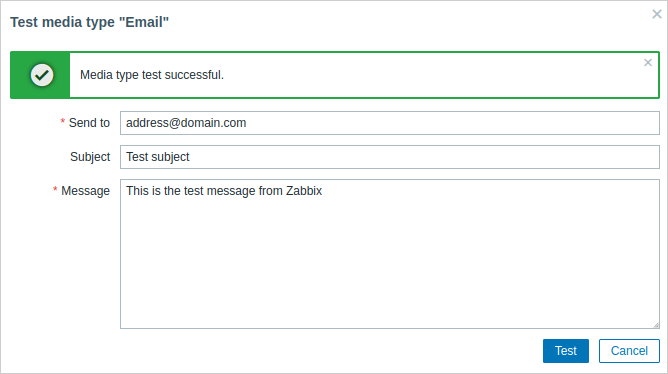
Pro tip: Consider choosing only high-severity notifications to avoid flooding your inbox with informational alerts that might cause you to miss truly important ones.
- Select Active and click Add
Final Steps (zabbix email)
When completing the configuration, ensure all settings are saved properly. Your Zabbix email notification channel is now ready to use!
Official Zabbix Resources
For more information about Zabbix notifications and configuration, refer to these official resources:
- Zabbix Documentation
- Zabbix Email Configuration Guide
- Zabbix Actions Configuration
- Zabbix Media Types
- Zabbix Official Website
Similar materials – https://itorakul.com.ua/en/zabbix/