
Here is the corrected and expanded version of your article with improved clarity, accuracy, and some additional useful details:
In this article, we will explore how to monitor Windows family operating systems using the Zabbix Agent.
Practical Setup Guide
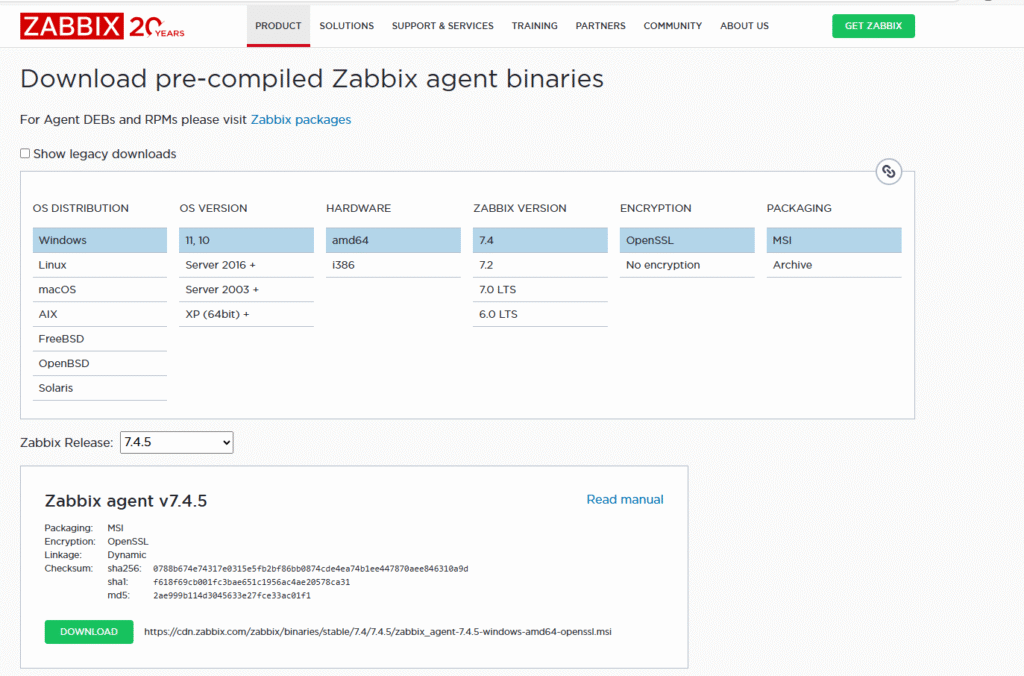
- Go to the official Zabbix download page: https://www.zabbix.com/download_agents.
- Select parameters matching your target operating system:
- OS Distribution: Windows
- OS Version: Any (currently no separate options)
- Hardware: Choose amd64 for 64-bit OS or i386 for 32-bit OS. For example, select amd64 for most modern systems.
- Zabbix version: Use the latest stable release (7.0 at the time of writing).
- Encryption: Decide whether to enable encryption. OpenSSL is a common choice, but use what fits your security requirements.
- Packaging: MSI.
- Scroll down and click Download.
Installing Zabbix Agent
- Run the downloaded MSI installer.
- In the welcome window, click Next.
- Accept the license agreement and click Next.
- In the component’s selection window, keep the default settings and proceed. You may change the installation path if desired, but default is usually fine.
- Click Next.
Configuration During Installation
Fill in these fields:
- Host Name: Enter the hostname of the machine where you are installing the Zabbix Agent.
- IP Address: Enter the IP address of the Zabbix Server. (On the server, use a command like
ipconfigon Windows orifconfig/ip aon Linux to find this.) - Server Proxy: Enter the address of your Zabbix Server or proxy, if applicable.
- Enable PSK: Check this option to enable encryption between the Zabbix Agent and Server.
Click Next to continue.
[amazon_auto_links id=”8218″]
Configuring PSK Encryption
PSK (Pre-Shared Key) requires two elements:
- PSK Identity: Typically, reuse the hostname of the monitored host.
- PSK Key: A hexadecimal key between 128-bit (32 hex chars) and 2048-bit (512 hex chars).
To generate a 256-bit (32-byte) key on your server, use this command:
openssl rand -hex 32Alternatively, generate a random key from trusted third-party tools. Save this key securely—you’ll need it for server configuration.
Enter the PSK Identity and PSK Key in the installer, then click Install to complete the agent installation.
Adding the Host to Zabbix Server
- On your Zabbix Server web interface, navigate to Configuration > Hosts.
- Click Create Host.
- Enter the following:
- Host Name: Use the same hostname as on the agent machine.
- Templates: Link the host to the Windows by Zabbix Agent template.
- Host Groups: Assign the host to an existing group or create a new one.
- Interfaces: Choose Agent Interface, enter the host’s IP address.
- Description: Optional.
- Go to the Macros tab and add these macros if you use PSK encryption:
{HOST.PSK.NAME}with the PSK Identity.{HOST.PSK}with the PSK Key.
- In the Encryption tab:
- Select PSK as the connection method.
- Uncheck No Encryption to enforce encrypted communication.
- Fill in PSK Identity and PSK Key matching the agent’s values.
- Click Add to save the host.
Final Steps and Monitoring
Wait for the Zabbix Server to establish a connection with the agent. A green indicator next to the host name confirms successful communication and active monitoring.
If any problems occur, they will appear in the Monitoring > Problems tab.
If you have further questions about Zabbix setup or monitoring Windows systems, feel free to ask in the comments or join the Telegram chat linked to the channel.
Similar articles and resources can be found here: https://itorakul.com.ua/en/zabbix/