
In this article, we’ll explore how to monitor Linux operating systems using the Zabbix server and Zabbix Agent.
Let’s get started with practical implementation on Ubuntu Linux. First, update package lists and installed packages:
- sudo apt update updates package lists
- sudo apt upgrade updates installed packages to the latest versions
After updating, install the Zabbix Agent using: sudo apt install zabbix-agent.
Next, we need to modify the Zabbix Agent configuration file.
Open the file with an editor (I use nano, but you can use any other). Command to edit: sudo nano /etc/zabbix/zabbix_agentd.conf. In the file, find the Server= line and specify the Zabbix server IP address, for example: Server=192.168.1.100
Then scroll down and do the same with the Server active= item.
Save the file: ctrl+O, Enter, ctrl+X.
Then:
- Start Zabbix Agent: (sudo systemctl start zabbix-agent)
- Enable Zabbix Agent autostart: (sudo systemctl enable zabbix-agent)
- Check Zabbix Agent status: (sudo systemctl status zabbix-agent)
Also, check if ports 10050/10051 are open in the firewall, they are needed for Zabbix Agent monitoring. If the ports are closed, they need to be opened. Commands:
- Check port status: sudo ufw status
- Open ports: sudo ufw allow 10050/tcp sudo ufw allow 10051/tcp
- Reload firewall: sudo ufw reload
If the firewall is disabled, first enable it: sudo ufw enable
Zabbix Agent settings are complete. Moving to Zabbix server configuration.
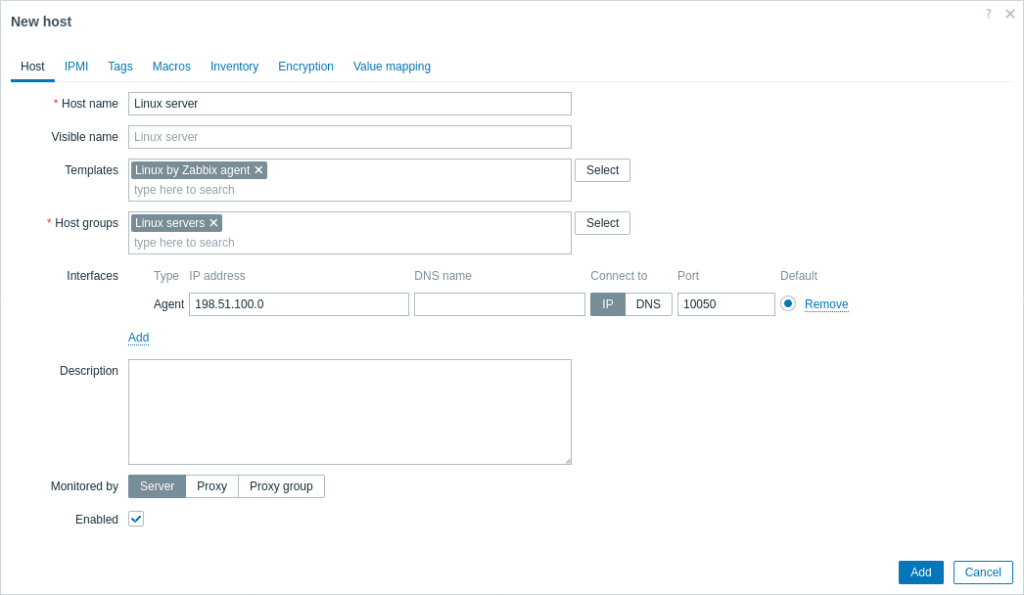
Go to the Data Collection tab, then to Hosts, click the “create host” button in the top right corner and fill in the corresponding fields:
- Host Name: enter a unique host name
- Templates: select “Linux by Zabbix agent”
- Host groups: choose an existing or create a new group
- Interfaces: add Zabbix Agent IP address
- Description: optionally add a comment
- Click “Add” to save settings
[amazon_auto_links id=”8218″]
Now we need to wait a few minutes for the Zabbix server to receive data from the Zabbix Agent. If the connection is not established, try restarting the Zabbix Agent.
Configuration is complete. If you have any questions, you can ask them in the comments below.
- Similar materials – https://www.zabbix.com/documentation/current/en/manual/guides/monitor_linux
- Similar materials – https://itorakul.com.ua/en/zabbix/