
What is Zabbix?
Zabbix – is software for monitoring network parameters, server health and integrity, virtual machines, applications, services, databases, websites, cloud environments, and much more. Zabbix uses a flexible notification mechanism that allows users to configure email-based alerts for virtually any event. This approach ensures a quick response to problems. Zabbix also offers excellent reporting and data visualization features based on historical data.
It’s also worth noting that Zabbix is completely free. Regarding hardware requirements, Zabbix requires both physical memory and disk space. The amount of required disk space depends on the number of monitored network nodes. If you plan to store long-term historical data, you’ll need at least several gigabytes for the database. The more RAM you have, the faster the database (and consequently Zabbix Server) will perform!
Now let’s move on to installing Zabbix.
Installing Zabbix Server
We will install Zabbix on a Linux Ubuntu server, but this tool is also supported by many other operating systems. You can find the full list of supported systems on the official Zabbix website. For this guide, I’ve deployed Ubuntu Server on VirtualBox and connected to the virtual machine via SSH using the PuTTY utility.
- Go to the official Zabbix page: https://www.zabbix.com/download.
Next, we need to select the platform we’ll be installing Zabbix on. - For this guide, we’ll use version 6.4, Ubuntu distribution, version 22.04.
- The components we will install include the Server, Frontend, and Agent.
- The database will be MySQL. You can choose PostgreSQL if you prefer, and the web server will be Apache. Again, you can choose Nginx if you prefer.
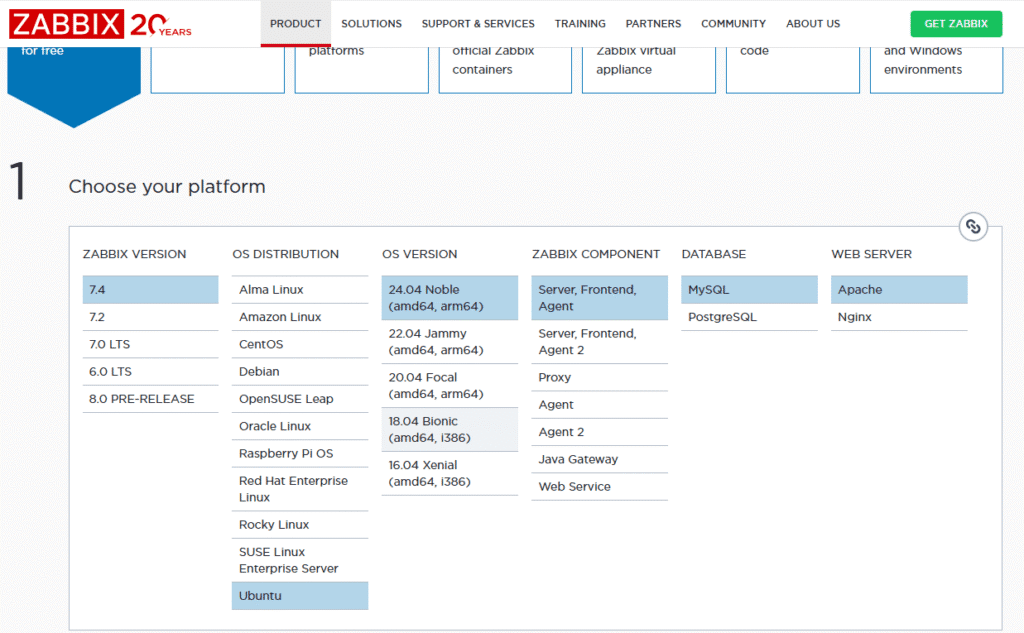
Scroll down, and you’ll see the configuration provided for installing Zabbix. This configuration depends on the options you selected above. Let’s proceed step by step:
Step A: Install the Zabbix Repository
To install the Zabbix repository, follow these steps in the terminal (preferably as root for convenience):
- Command 1:
wget https://repo.zabbix.com/zabbix/6.4/ubuntu/pool/main/z/zabbix-release/zabbix-release_6.4-1+ubuntu22.04_all.deb
This command uses the wget utility to download the zabbix-release_6.4-1+ubuntu22.04_all.deb file from the specified URL. This package is needed to add the Zabbix repository to your Ubuntu system. - Command 2:
dpkg -i zabbix-release_6.4-1+ubuntu22.04_all.deb
This command installs the downloaded package, adding the Zabbix repository to your system. - Command 3:
apt update
This updates your system’s package list, ensuring it recognizes the newly added Zabbix repository.
Step B: Install Zabbix Server, Web Interface, and Agent
While installing the agent is optional, it is necessary if you plan to monitor the Zabbix server itself. Since I want to monitor the Zabbix server, I will install the agent too.
Commands for installation:
- zabbix-server-mysql: This package contains the Zabbix Server, which collects and processes monitoring data. It is installed with MySQL database support.
- zabbix-frontend-php: This package contains the Zabbix web interface for managing and viewing monitoring data via a browser.
- zabbix-apache-conf: This package contains configuration files for Apache to set up the Zabbix web server.
- zabbix-sql-scripts: This package includes SQL scripts to create the Zabbix database.
- zabbix-agent: This package installs the Zabbix Agent, which collects system data and sends it to the Zabbix Server for analysis. (These packages will allow you to install and configure the Zabbix Monitoring Server on your system.)
Step C: Create the Database
Next, we need to create the database (These commands perform actions in the MySQL database management system).
mysql -uroot -p: This command connects you to the MySQL database server as the root user. The -p parameter will prompt you to enter the root user password after the command is executed.
(As we see, an error is returned because the SQL server is not installed. Keep in mind that you need to install the SQL server first before you can work with databases.)
To install the SQL server on your machine (apt install mysql-server). For those unfamiliar with Linux: I am working as root, so I simply use apt-get. If you are working as a standard user, you need to prepend sudo before apt commands, i.e., sudo apt-get.
Next, copy and execute the following commands sequentially:
- create database zabbix character set utf8mb4 collate utf8mb4_bin; This command creates a database named “zabbix” with UTF-8 encoding and utf8mb4_bincollation to support the full Unicode character set.
- create user zabbix@localhost identified by ‘password’; This command creates a new user zabbix with the password password. The user is allowed to connect to the database only from the local machine (localhost). (You can replace password with your own secure password. Make sure to remember it, as you’ll need it later.)
- grant all privileges on zabbix.* to zabbix@localhost; This command grants the zabbix user all privileges for the zabbix database, including creating, modifying, and deleting data.
- set global log_bin_trust_function_creators = 1;This command sets the global system variable log_bin_trust_function_creators to 1. This allows users to create functions and procedures in the database, which are required for replication.
- quit; This allows users to create functions and procedures in the database, which are required for replication.
These commands set up the database, create a user, and grant the necessary privileges for Zabbix Server to function. On the Zabbix server host, import the initial schema and data. Run the following command, which will prompt you to enter the password for the zabbix user you created earlier:
zcat /usr/share/zabbix/sql-scripts/mysql/server.sql.gz | mysql –default-character-set=utf8mb4 -uzabbix -p zabbix
This command imports the SQL schema for the Zabbix database from the compressed file server.sql.gz. It initializes the database for Zabbix Server.
After importing the schema, disable the log_bin_trust_function_creators option:
- mysql -uroot -p: This command connects you to the MySQL or MariaDB database server as root. It requires you to enter a password after entering the command.
- password: After entering the command mysql -uroot -p, you need to enter the root user password to log in to the database management system.
- set global log_bin_trust_function_creators = 0;: This command sets the MySQL global system variable log_bin_trust_function_creators to 0. This means that users cannot create functions and procedures without the correct privileges.
- quit;: This allows users to create functions and procedures in the database, which are required for replication.
Disabling log_bin_trust_function_creators enhances security by preventing unauthorized users from creating functions or procedures in the future. However, it may cause permission issues if you try to create functions later without proper privileges.
Step D: Configure the Zabbix Server Database
Edit the configuration file /etc/zabbix/zabbix_server.conf using a text editor, such as nano.
- Find the DBPassword field. Uncomment it and enter the password you set for the Zabbix database.
- You can also verify the database name and user in this file.
- Save and exit the editor:
- Press Ctrl+O, then Enter to save changes.
- Press Ctrl+X to exit.
(Configuration complete.)
Step E: Start Zabbix Server and Agent Processes
To restart the processes and enable them at system startup, run the following commands:
- systemctl restart zabbix-server zabbix-agent apache2: This command restarts the Zabbix Server, Zabbix Agent, and Apache2 services. The systemctl restart command is used to restart a service or multiple services by name.
- systemctl enable zabbix-server zabbix-agent apache2: This command sets up autostart for the Zabbix Server, Zabbix Agent, and Apache2 services. After running this command, these services will automatically start when the system boots.
These commands ensure that Zabbix Server, Agent, and Apache2 start automatically when the system boots.
[amazon_auto_links id=”8218″]
Connecting to the Zabbix Web Interface
Replace the comma with a period to avoid a run-on sentence:
Zabbix installation is complete. Now let’s try to connect. Open a browser and navigate to http://<your_server_ip>/zabbix.
We will reach the interface where you are offered to choose the interface language. I choose English. Click Next. On this tab, you will see the system readiness status. If everything is fine, all checks should display OK.
Click Next. On this tab, you will be required to configure the connection to the database. Leave everything as default because we did not change the port. Since the server is located on the same PC, leave localhost as is. Here, you only need to enter the password that you set when creating the database and click Next.
If we get to the next tab, it means that the connection to the database was successful.
On this tab, enter the server name, time zone, and choose your preferred theme. Click Next. Review your settings on the next screen and click Next again. You will see a notification that the installation was successful. Click Finish to proceed to the login page.
Here, in the user field, enter Admin (with an uppercase ‘A’), and in the password field, enter zabbix (lowercase). Click Sign in, and you will be taken to the Zabbix web interface
You have now successfully installed and configured Zabbix Server. You can access the Zabbix web interface and start monitoring your systems!