Introduction
In this article, we will explore in detail how to send event notifications from a Zabbix server to the Telegram messenger using a Telegram Bot. This integration allows system administrators to receive important alerts directly on their mobile devices, ensuring timely response to critical events.
Telegram Configuration
Step 1: Creating a New Telegram Bot
To begin, we need to register a new Telegram bot:
- Open Telegram and search for the user “@BotFather“
- Send the command “/newbot” to @BotFather
- You’ll be asked to provide two names:
- The first name will be displayed as the bot’s name in conversations
- The second name will be the bot’s username (must end with “bot”) that people can use to find it in Telegram
- After completing these steps, @BotFather will provide you with a token
- It’s highly recommended to save this token securely as it will be required for Zabbix configuration
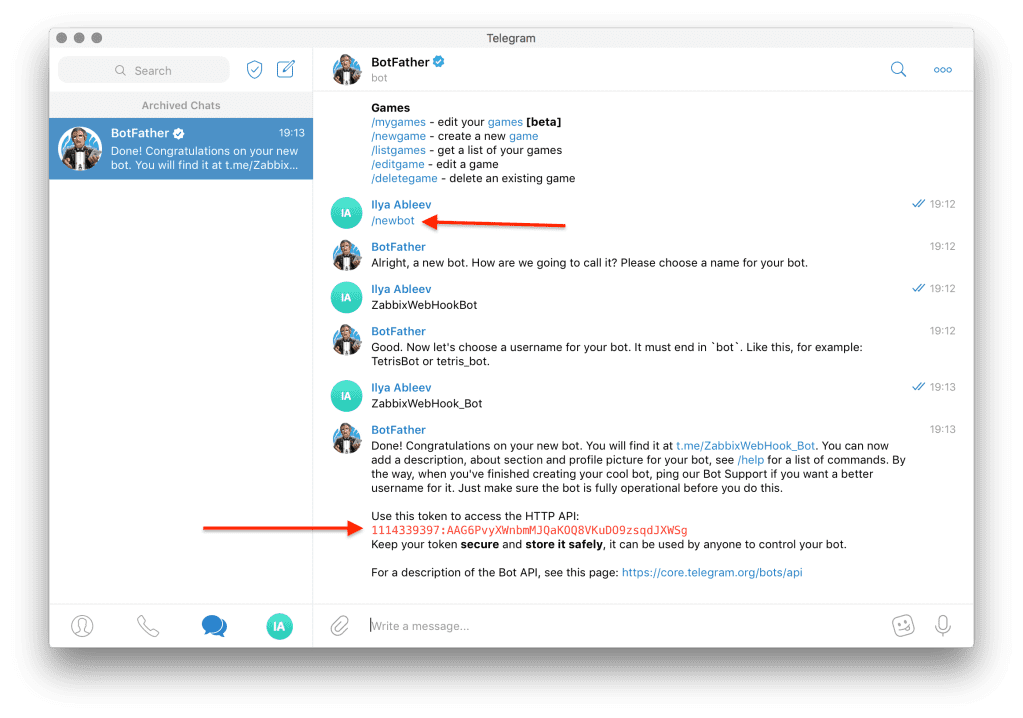
Step 2: Obtaining the Chat ID
Next, we need to get the chat identifier (ID) for the user who should receive the messages:
- In Telegram, find and message “@myidbot“
- Send the command “/getid” to this bot
- @myidbot will respond with your unique chat identifier
- Save this ID along with the token you received earlier
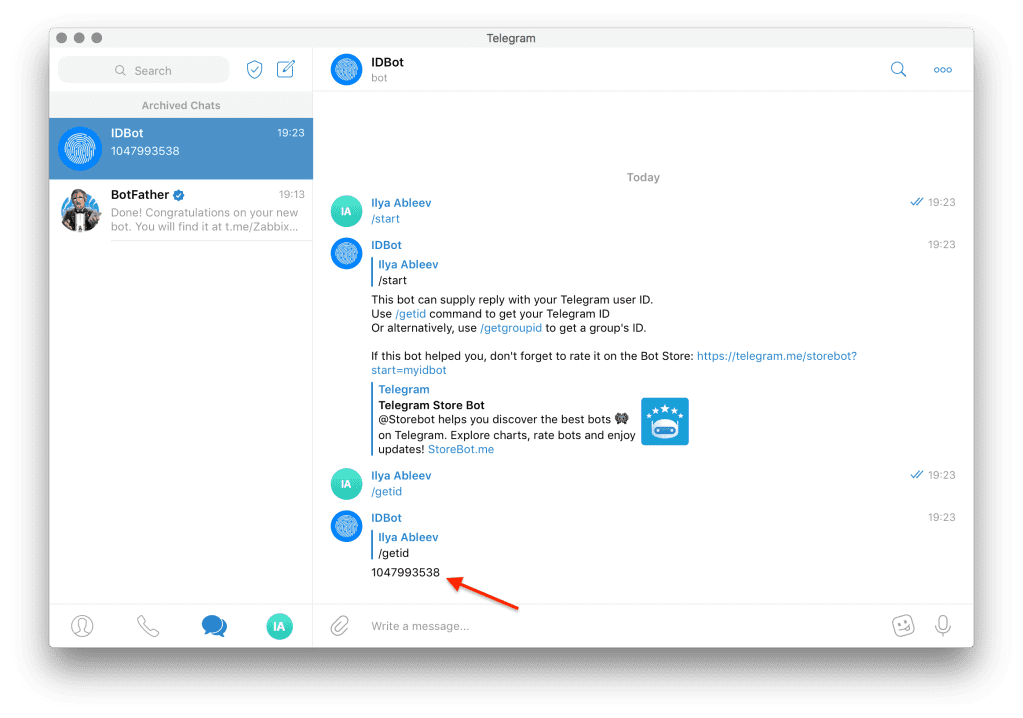
Zabbix Server Configuration
Step 1: Configure Media Type
- Navigate to “Administration > Media types” in your Zabbix dashboard
- In the Telegram token field, paste the token you received when creating your Telegram bot
Step 2: Configure User Media
- Go to the “Administration” section, then select the “Users” tab
- Choose the user who should receive notifications
- Go to the “Media” tab and click “Add”
- Select “Telegram” as the media type
- In the “Send to” field, paste the chat ID you obtained earlier
- Set the active time period during which notifications should be sent
- Select which notification severity levels should trigger alerts
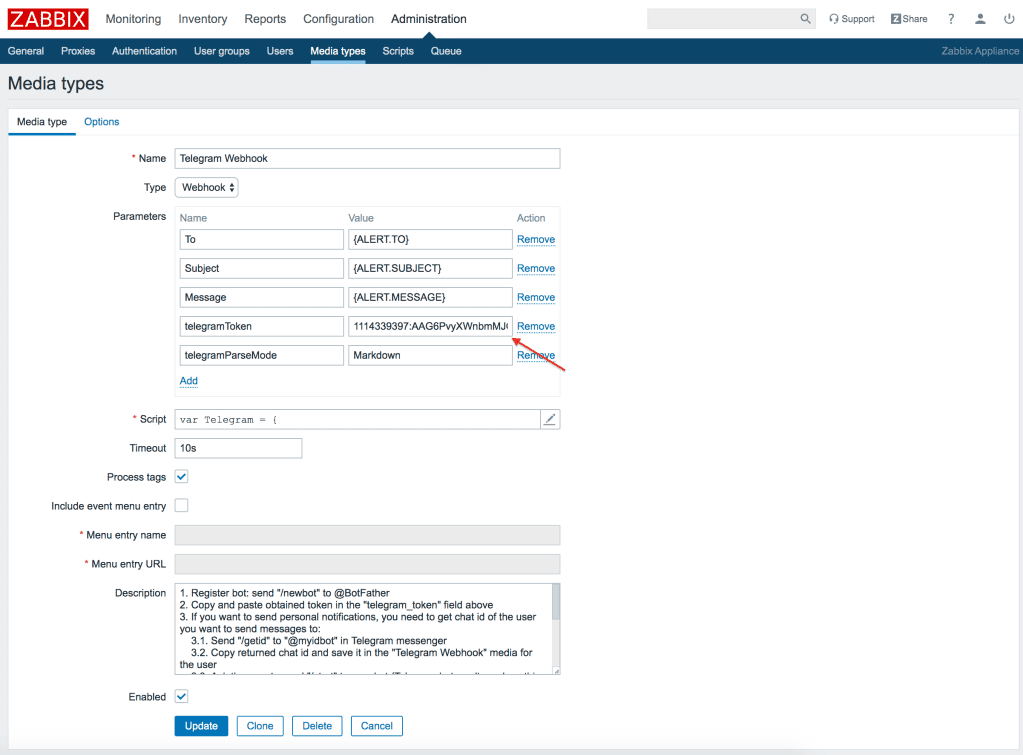
Important Note on Notification Levels
It’s recommended to select only high-priority notifications; otherwise, your Telegram will be flooded with various informational alerts. This could potentially cause you to miss truly important notifications among the less critical ones.
Finalizing the Setup
- Enable the media by checking the “Enable” box
- Click “Add” to save your settings
The configuration is now complete, and you should begin receiving Zabbix alerts in your Telegram messenger.
If you have any questions about this setup process, feel free to ask in the comments section.
- Similar materials – https://itorakul.com.ua/en/zabbix/
- Similar materials – https://www.zabbix.com/integrations/telegram